
Review credits before you start
Review the required credits before starting.
Upscale images up to 4× with AI. Increase image resolution while preserving sharp edges and natural details.
01 / Source
02 / Settings
Estimated output
— × — · 2×
Review the required credits before starting.
Once processing is complete, compare and download the upscaled result.
Upload, configure, and manage the result directly in your browser.
Before and after
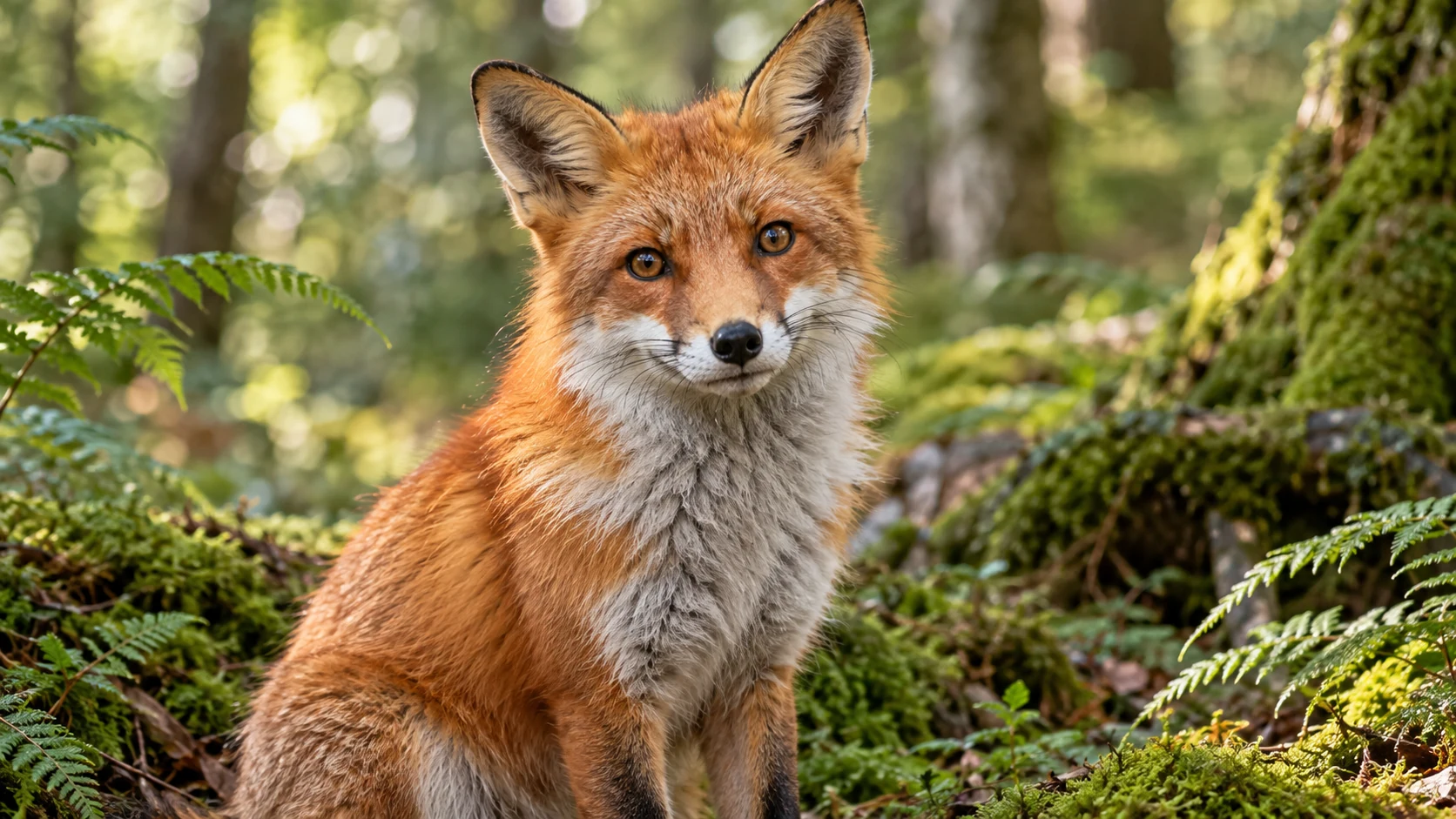
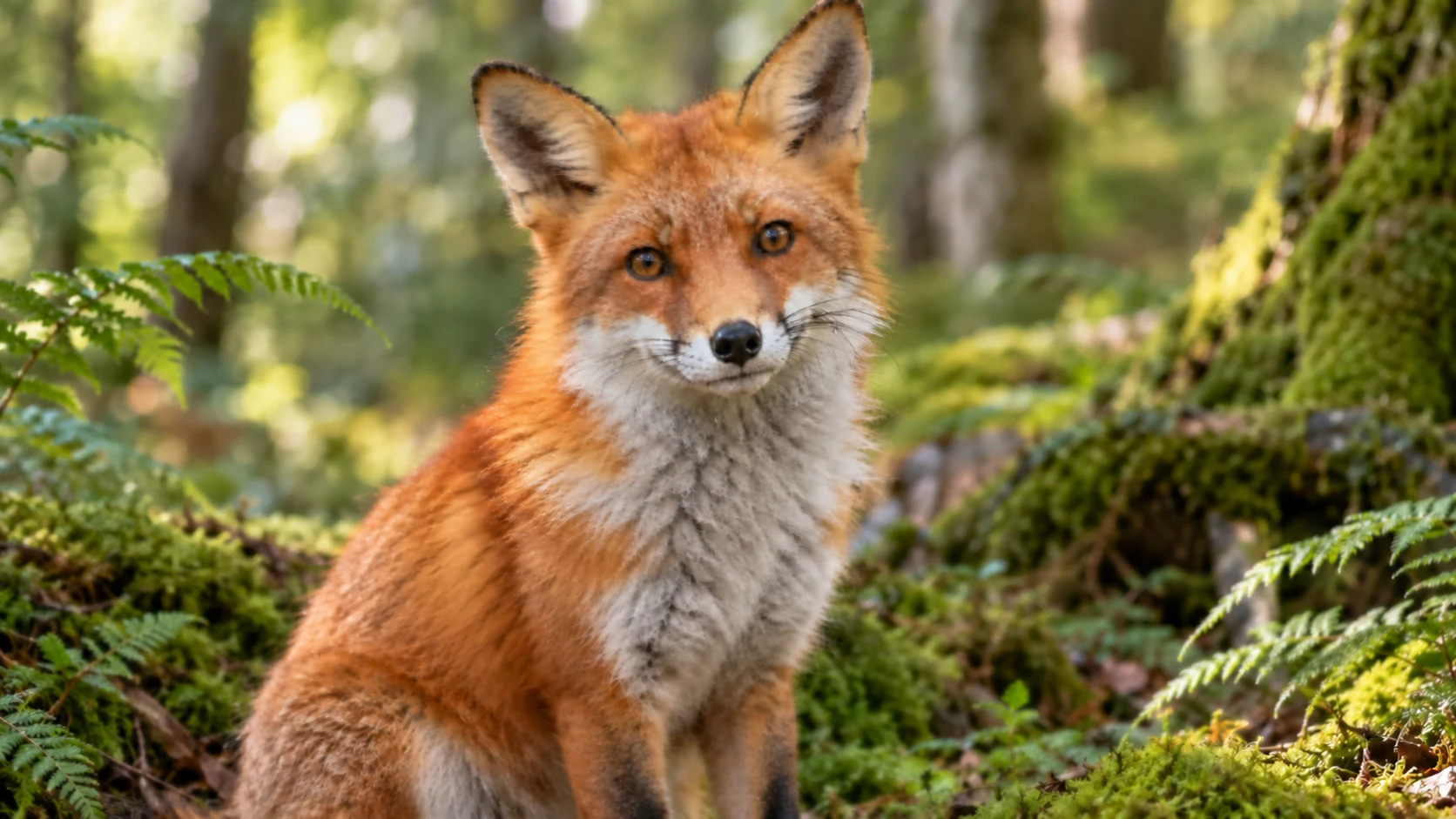
How it works
Choose how many times larger the image should be. Zareviko shows the expected pixel dimensions before generation and preserves the source aspect ratio.
Add one JPEG, PNG, or WebP image up to 10 MiB.
Select the enlargement multiplier and review the estimated output dimensions.
Start the upscale after reviewing the quote.
Compare the original and upscaled result, then save it in your preferred supported format.
Why it helps
An AI image upscaler uses super-resolution technology to reconstruct plausible edges and details while producing an image that is exactly 2× or 4× wider and taller.
Choose 2× or 4× and see the expected output width and height before processing.
Both dimensions grow by the same multiplier without stretching the original composition.
Keep the source format or export a supported JPG, PNG, or WebP file.
Use cases
Create larger storefront assets for product pages, marketplaces, and campaign layouts.
Prepare a larger working file before cropping, compositing, or adding typography.
Increase pixel dimensions for high-density screens and larger slide layouts.
Produce a larger source file before checking the final physical size and print resolution.
Turn an undersized but usable web image into a larger working copy.
Know the limits
FAQ
An AI image upscaler increases an image's pixel dimensions and uses AI super-resolution techniques to reconstruct edges and plausible visual detail.
2× doubles the width and height, while 4× multiplies both dimensions by four. An 800 × 600 image becomes 1600 × 1200 at 2× or 3200 × 2400 at 4×.
AI upscaling can make a low-resolution image look sharper at a larger size, but it cannot reliably recover information that is completely missing from the original.
JPG, JPEG, PNG and WebP.
No. Standard 2× and 4× upscaling keeps the original aspect ratio.
No. Image Upscaler focuses on increasing resolution. Image Enhancer focuses on blur, noise, poor lighting or damaged details.
Related tools